Image Upload Enhanced
Collect photos in Flow without storing oversized originals.
Staff or applicants take a photo on a Flow screen. The component resizes and compresses it in the browser, shows a preview, and hands the smaller file to the next Flow step.
One example, not a guarantee. The Seattle photo on this page went from 1,216 KB to 49 KB. A different camera, or different settings, will land somewhere else.
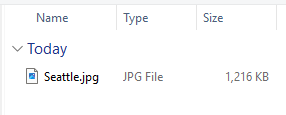

One example. Your results will differ.
- Try
- Use the demo on this page, and compare the Seattle photo sizes above. That pair is one example.
- Install
- Production and sandbox. Unlocked package. It sits on a Screen Flow.
- Get help
- Setup notes are in the support docs. Source is on GitHub. For help wiring it into your org, write Jason.
Image Upload Enhanced wraps Salesforce’s lightning/mediaUtils processImage API so you configure target dimensions, compression, and preview layout in Flow Builder—no custom JavaScript in the Flow. Outputs include file name, extension, size, preview URL, and imageData64 for the next step: ContentVersion, custom field, or invocable Apex.
Try it in a Screen Flow
This embed runs three_levers__imageUploadEnhancedDEMO from my public Salesforce Site via
Lightning Flow iFrame.
Pick an image, watch resize and preview, then finish the flow—the iframe height adjusts automatically.
Demo only—files are not saved to Salesforce. Finish reloads this page so you can try again. Install the package to wire imageData64 into ContentVersion or Apex in your org.
1. Upload
Staff pick an image file on a Flow screen. The component validates image/* and surfaces a clear error for wrong file types.
2. Process & preview
Resize with contain mode and reduce strategy, apply compression quality, optional transparency (PNG) or flat background (JPG). Preview dimensions and optional rich-text message are configurable.
3. Output to Flow
Flow reads imageData64, fileSize, fileName, and fileExtension—then the included Save Content Version action (or your own Apex) persists the file.
Flow Screen configuration
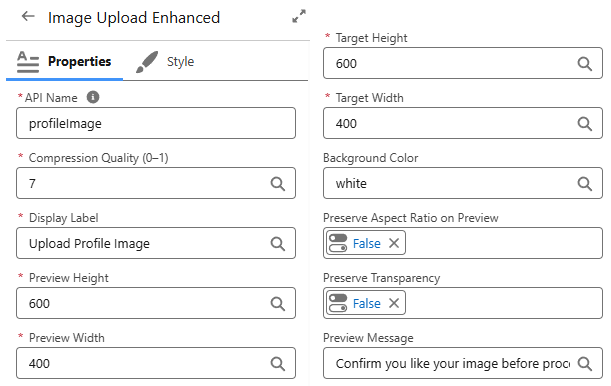
Set display label, target width/height, preview size, compression quality, background color, and whether to preserve transparency (PNG) or flatten to JPG. Optional preview message supports rich text above the image.
- ✓
preserveAspectRatioon preview (contain vs cover) - ✓
reset()API to clear upload between Flow paths - ✓
imagereadyevent for advanced embedding
Client-side processing
Images are resized and compressed in the browser before Flow advances—smaller payloads, faster uploads, and less pressure on Apex heap when you decode base64 server-side.
Uses platform processImage with smoothing enabled. Extension defaults to .png when transparency is preserved, otherwise .jpg.
Original
1,216 KB
After process
49 KB
~96% smaller

Staff confirm the preview in Flow—the file is already resized and compressed in the browser.
| Output | Type | Use |
|---|---|---|
| imageData64 | Text | Base64 body for Apex decode or ContentVersion |
| imageData | Text | Blob URL for preview (client-side) |
| fileName | Text | Original upload file name |
| fileExtension | Text | .png or .jpg |
| fileSize | Number | Processed blob size in bytes |
| error | Text | Validation or processing error message |
Save Content Version
The package includes an Apex helper—CreateContentVersion—exposed to Flow as
Save Content Version. After the upload screen, map
imageData64 and fileName into the action with a parent record Id to create a Salesforce File (ContentVersion) without writing your own decode logic.
- ✓ Strips optional
data:URL prefixes - ✓ Validates base64 in chunks (avoids regex limits on large payloads)
- ✓ Sets
FirstPublishLocationIdso the file lands on the parent record - ✓ Optional Owner Id (defaults to the running user)
In subscriber orgs the class is three_levers.CreateContentVersion.
Setup notes are in the
support docs.
Source is on
GitHub.
Action inputs
| Input | Required | Map from |
|---|---|---|
| File Base64 | Yes | imageData64 |
| File Name | Yes | fileName |
| Parent Record Id | Yes | Record Id in the Flow |
| Owner Id | No | Optional User Id |
Action outputs
| status | Success or error message |
| fileSize | Decoded blob size in bytes |
| contentVersionId | New ContentVersion Id |
Field photo intake
Mobile Flow collects site photos resized before save
Grant or program applications
Applicants upload photos or image attachments; Flow stores ContentVersion
Case attachments
Standardize image dimensions for portal submissions
Profile or asset images
Crop to org-defined max width/height on upload
Inspection workflows
Before/after photos with consistent file size
Kiosk or event registration
Quick capture on a Screen Flow without custom LWC
The Lightning Web Component source is available on GitHub for review, fork, or reference implementations.
View on GitHub ↗- Install the unlocked package that includes Image Upload Enhanced.
- Add the component to a Screen Flow step; set target dimensions and compression.
- Map output variables (
imageData64,fileName, etc.) to Flow resources. - Add the Save Content Version action (
CreateContentVersion) with parent record Id—or use your own Apex / Create Records path.
- Salesforce org with LWC and lightning/mediaUtils support
- Screen Flow (or App / Record / Home page placement)
- Downstream step to save base64—use packaged Save Content Version or your own Apex
Ready to install Image Upload Enhanced?
Free unlocked package. Need help wiring it into Flow? Get in touch.